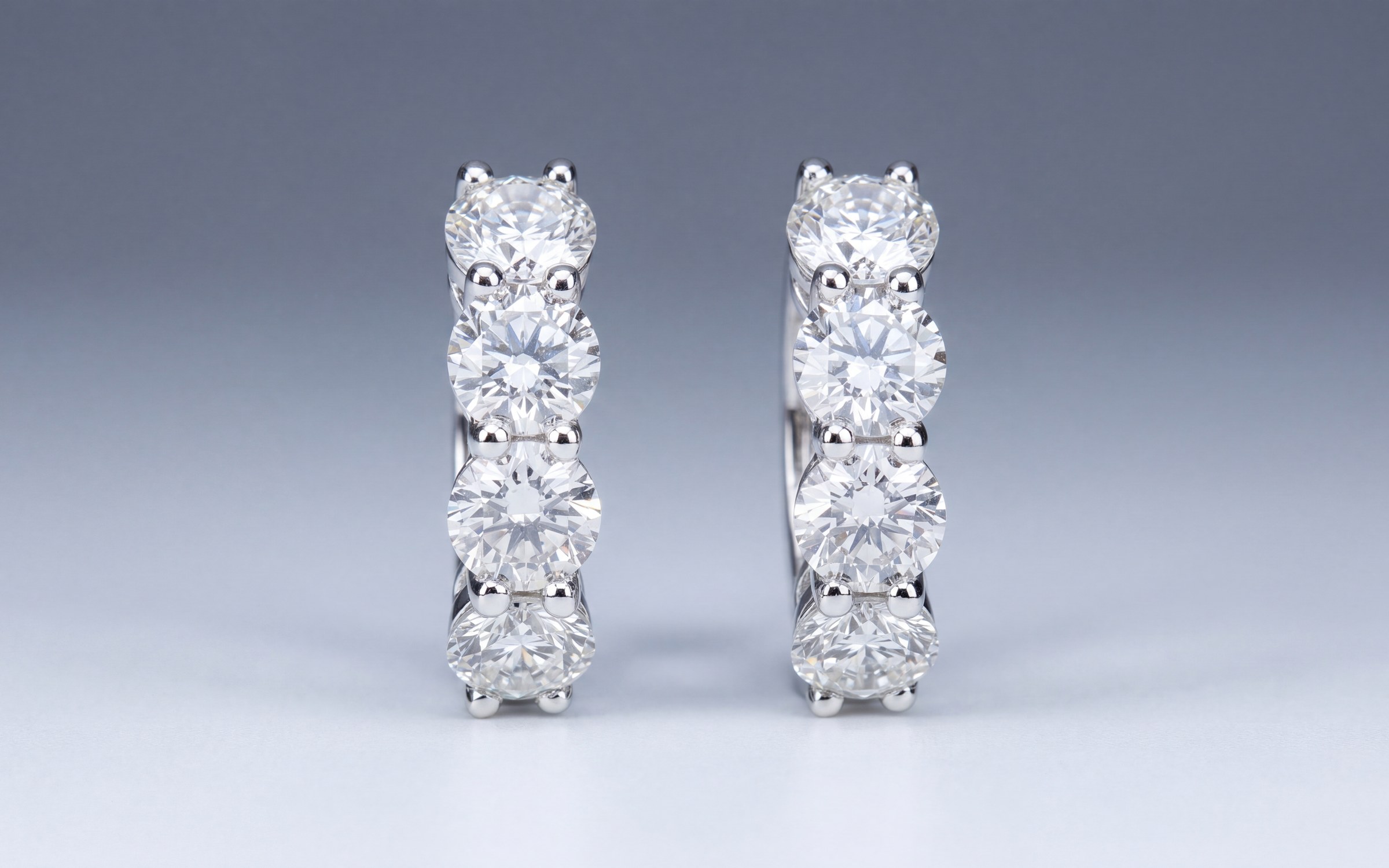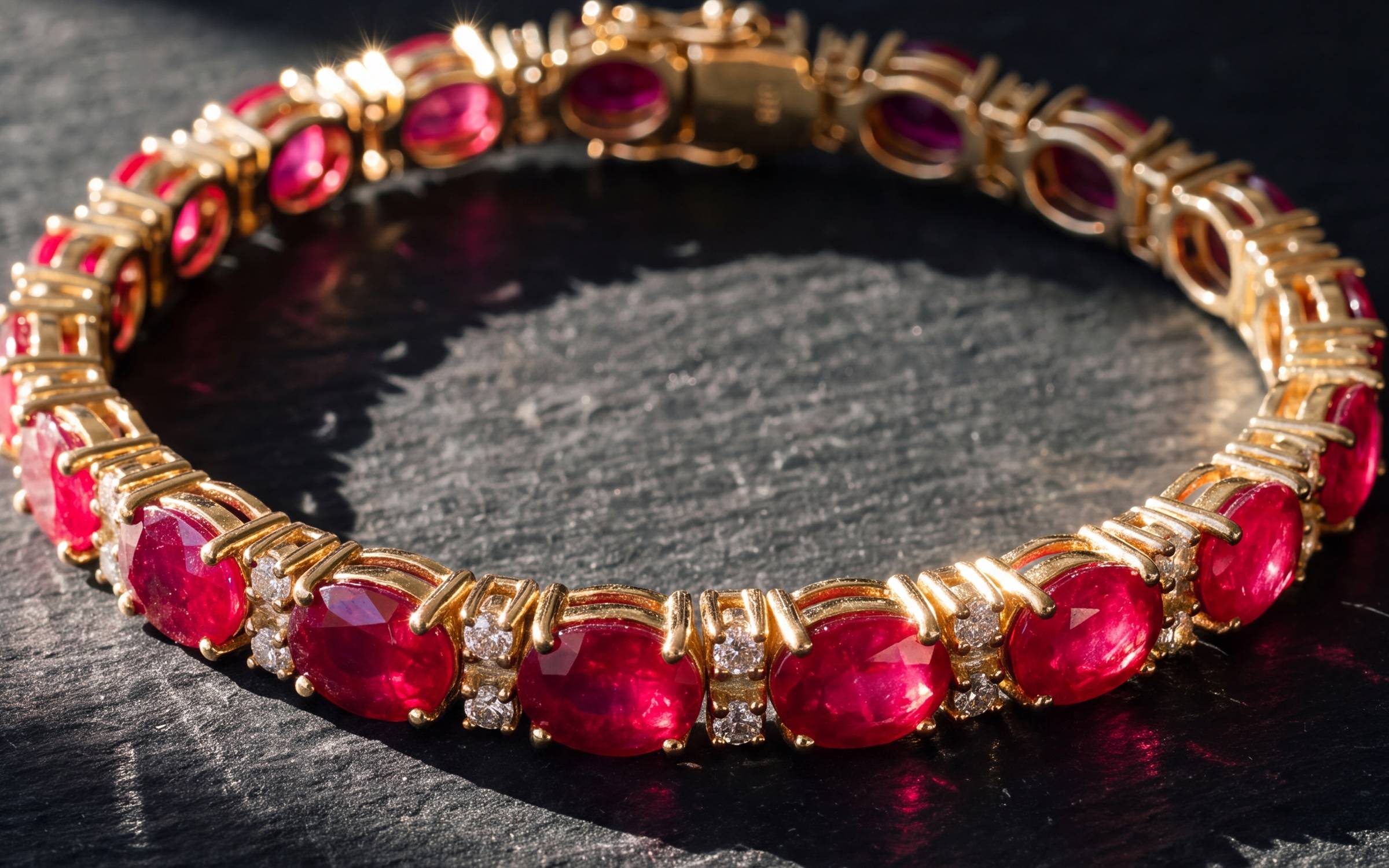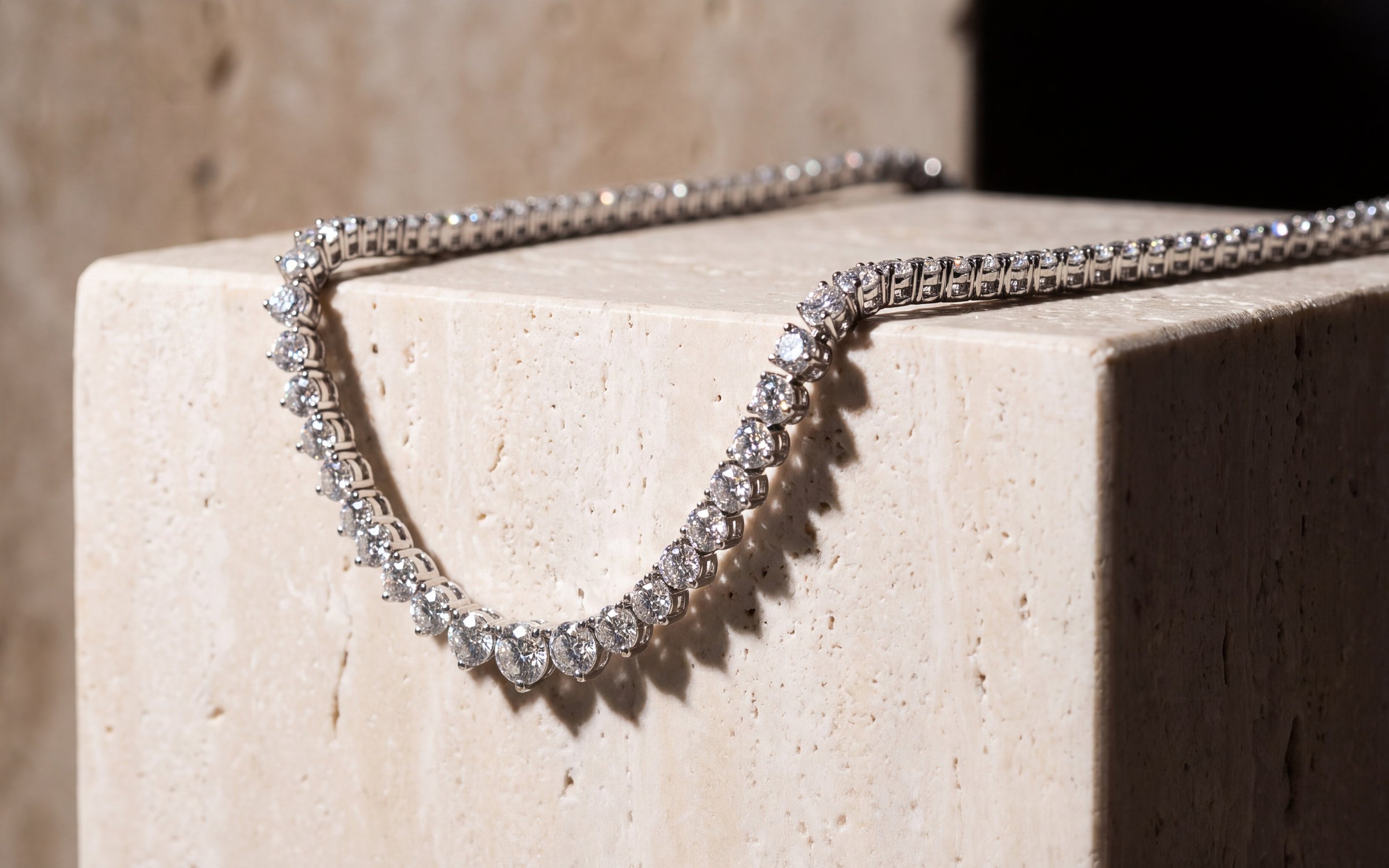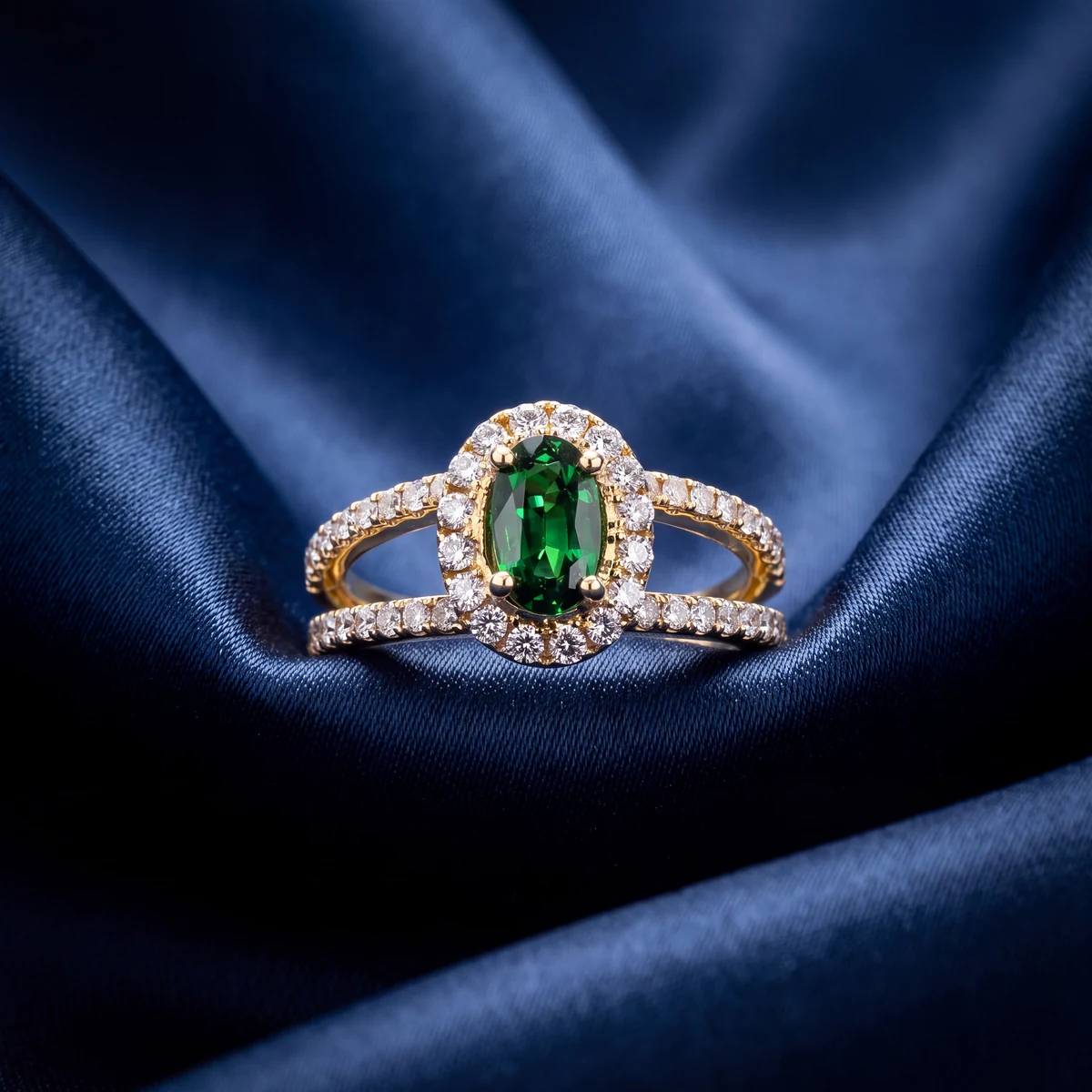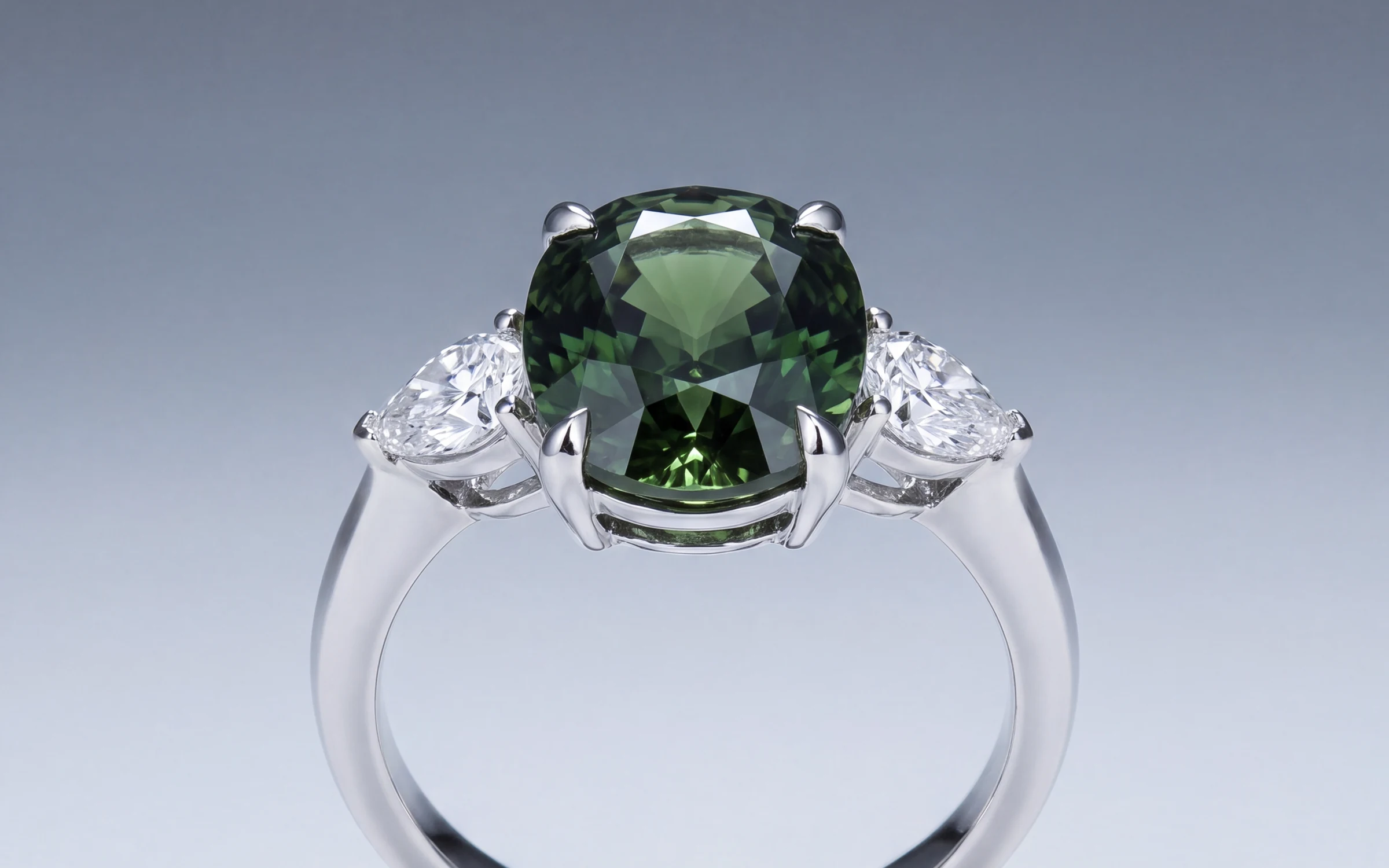
Plenty of jewelry stores run on Wix, and the store side of Wix handles product images well as long as you give it the right files. Give it the wrong ones and you get the two problems every Wix jeweler recognizes: a product grid where every tile is a different shape, and a mobile gallery that crops the top off your pendants.
This guide covers what Wix publishes about product images, what to actually use for jewelry, and how to set the gallery so your photos show whole on a phone.
What Wix publishes
From the Wix Stores help center on adding product images, at the time of writing:
- Minimum resolution listed: 3000 x 3000 pixels.
- Supported image ratios: 16:9, 3:2, 4:3, 1:1, 3:4, 2:3 and 9:16.
- For mobile, Wix suggests 1:1, square.
- The classic product page layout supports all of those ratios. Other layouts look best with wider images.
- Product videos: AVI, MP4, MOV or MPEG, up to 50 MB.
Wix changes these from time to time, so check the help center before you build a large batch around a number. Note that 3000 x 3000 is Wix's recommendation, not a hard floor. It will accept smaller images. It just will not make them sharper.
What to use for jewelry
Jewelry is sold on detail, and the product page zoom is where a customer checks the prongs and the halo. Upload the largest sharp image you have, at least 2048 pixels on the short side and ideally the 3000 Wix suggests, with the piece filling most of the frame. Wix makes the smaller versions it needs for grids and phones. You do not need to make your own.
- Format: a high quality JPEG for photos. PNG only when you need transparency.
- Fill the frame. Crop tight before you upload. A ring floating small in a large empty square falls apart at zoom.
- Color: export in sRGB so the metal color on the site matches the piece.
- File name: name the file after the piece, such as 14k-yellow-gold-ruby-three-stone-ring, rather than IMG_2210.
Pick one ratio, then set the gallery to match
This is the part that fixes the mobile cropping. The Wix product gallery displays images in one shape. If your images are a mix of tall, wide and square, it crops the ones that do not fit. If every image is the same ratio and the gallery is set to that ratio, nothing gets cropped.
- Choose a ratio for the whole catalog. Square is the safe choice on Wix and the one Wix suggests for mobile. It suits rings, earrings and most bracelets. Portrait, 4:5 or 3:4, suits necklaces and worn shots, but you then have to use it everywhere.
- Crop every product image to that ratio before upload.
- In the editor, open the product page settings and the product gallery settings, and set the image ratio to match. Check the mobile editor separately, because the mobile layout has its own settings.
- Look at the shop grid on a phone. If a tile is cropped, that image is the wrong shape.
The order of images on a product
The first image is the one on the shop grid, in search results, in Google's product listings and when the link is shared. Make it a clean catalog shot: the piece on a plain background, well lit, a soft shadow under it so it does not float. Then:
- Catalog shot on a plain background.
- A worn or scale shot so the customer can judge size.
- A side or profile view showing the setting height and the gallery under the stone.
- Close details: prongs, clasp, hallmark.
- A short video if you have one.
Metal options and variant photos
If a design comes in white, yellow and rose gold, set it up as product options and give each option its own photo. In Wix you can connect images to a specific choice so the gallery changes when the customer picks rose gold. Never let a white gold option show a yellow gold photo. The customer expects the piece in the photo, and a metal mismatch is an easy return.
Alt text and search
Every product image in Wix has an alt text field. Fill it with a plain description of the piece: '14K yellow gold oval ruby and diamond three-stone ring, front view'. Screen readers read it and search engines use it to understand the image. If you connect your Wix store to Google's product listings, keep the main image free of text, logos and watermarks, because Google is stricter about that than Wix is.
A checklist for every Wix jewelry product
- Main image at least 2048 pixels on the short side, ideally 3000, piece filling most of the frame.
- Every image in the catalog is the same ratio, and the gallery settings match it on desktop and mobile.
- Image one is a clean catalog shot with no text or watermark.
- Image two is a worn or scale shot.
- Side view and close details for rings and anything high-ticket.
- Each metal option has its own photo connected to that option.
- Alt text describes the piece in plain words.
- The photo matches the description: same metal, same stones, same piece.
Getting the whole catalog to that standard
Knowing the right size is the easy part. The hard part is the few hundred pieces photographed over the years, in different light, at different sizes, on different backgrounds. Aurix takes those photos, including old snapshots and supplier images, and makes catalog and worn photos of the same piece, consistent across the catalog and sized for zoom. The stones, metal and setting are held to the original, and each result waits for your review before it publishes to your Wix store or to Shopify. If you are on Shopify instead, the Shopify image size guide covers that platform's numbers, and jewelry product descriptions covers the text that goes with the photos.
Try it on your own photos
Try 10 photos free, no card needed, at app.getaurix.ai. After that, plans start at $99 a month: Starter $99, Growth $199 and Scale $399, month to month. If you'd rather see it first, book a 20-minute walkthrough. We run it on sample pieces.
Questions jewelers ask
What image size does Wix recommend for products?
Wix's help center lists a minimum resolution of 3000 x 3000 pixels for product images and supports 16:9, 3:2, 4:3, 1:1, 3:4, 2:3 and 9:16 ratios, with 1:1 suggested for mobile. Wix will accept smaller files, but for jewelry, where customers zoom, upload the largest sharp file you have.
Why do my product images look cropped on mobile in Wix?
The mobile product gallery shows images in a fixed shape, so a tall or wide image gets cropped to fit. Upload square images, or set every image in the catalog to the one ratio your gallery is set to, and the crop goes away.
Should Wix jewelry photos be square?
Square is the safest choice on Wix, especially for mobile, and it suits rings and earrings. Portrait suits necklaces and worn shots. Pick one ratio and use it for every product so the shop grid lines up.
How many images should a jewelry product have on Wix?
Four to six for most pieces: a clean catalog shot, a worn or scale shot, a side view and close details. Bridal and high-ticket pieces can carry more, plus a short video.
Can Aurix publish product images to Wix?
Yes. Aurix makes catalog and worn photos from the photos you already have, and once you approve a result it can publish to your Wix store, or to Shopify. By default nothing publishes until you approve it.